

































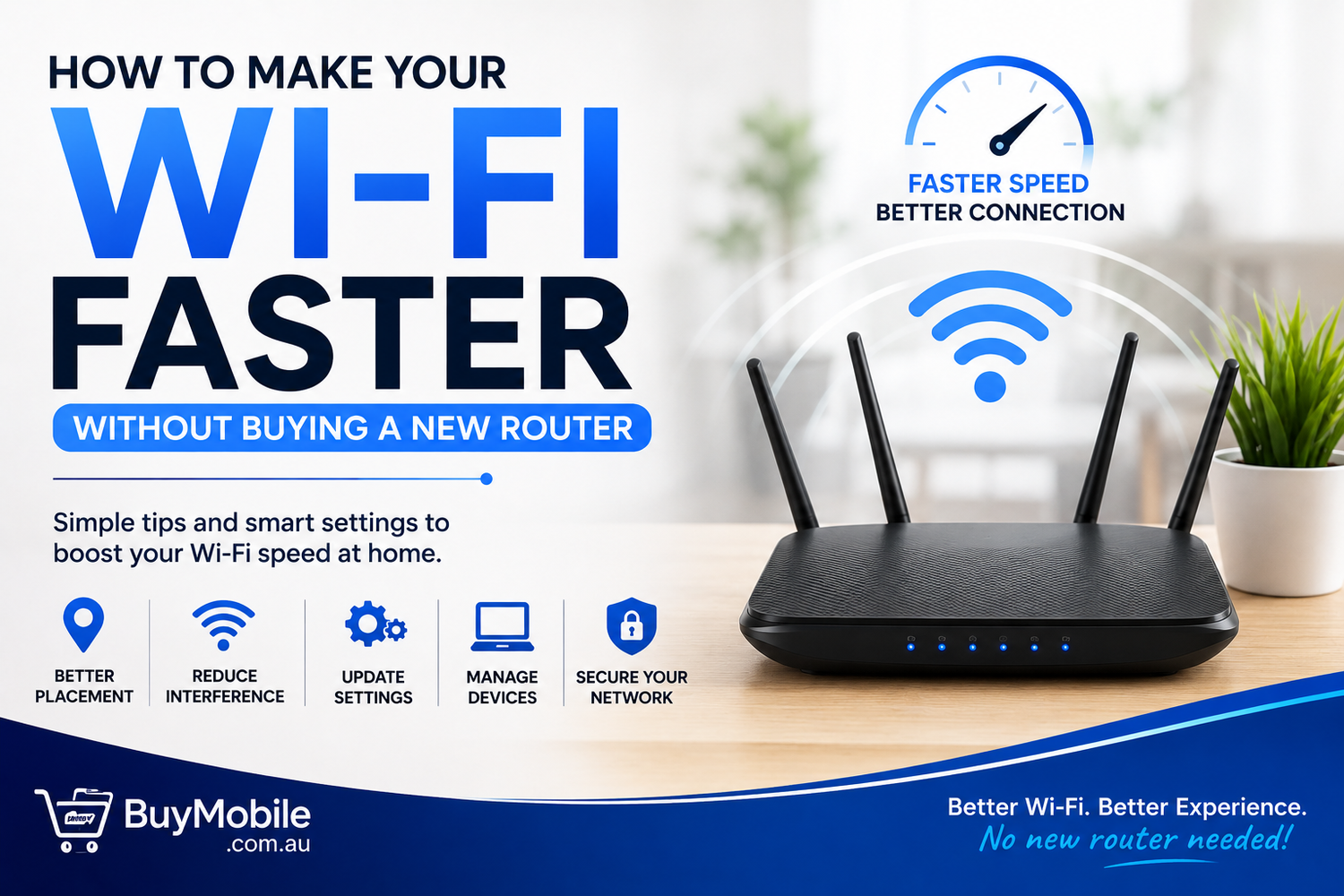
Slow Wi-Fi is frustrating. Videos start buffering, websites take longer to load, video calls freeze, games lag, and smart devices mysteriously lose their connection. When this happens, buying a newer and more expensive router might seem like the obvious solution.But don't reach for your wallet just yet.Many Wi-Fi problems are caused by router placement, interference, overloaded networks, outdated settings, or connected devices rather than the router itself. With a few simple adjustments, you may be able to noticeably improve your wireless connection without buying any new networking equipment.Here are some practical ways to make your Wi-Fi faster without buying a new router.
1. Move Your Router to a Better Location
Router placement can have a surprisingly large effect on Wi-Fi performance.If your router is hidden inside a cabinet, sitting on the floor, or located at one end of your home, the signal may struggle to reach your devices.Ideally, place your router somewhere relatively central and open. Raising it onto a desk or shelf can also help the signal travel more effectively.Avoid hiding the router behind televisions, furniture, or other large objects.Remember that Wi-Fi signals must travel through whatever stands between your device and router. Walls, floors, furniture, and other obstacles can weaken the connection.Simply relocating your existing router could therefore produce a noticeable improvement.
2. Keep the Router Away From Interference
Your home contains plenty of devices that can potentially interfere with wireless connectivity.Microwave ovens, Bluetooth equipment, cordless phones, baby monitors, and neighbouring wireless networks can all contribute to congestion or interference under certain conditions.Try keeping your router away from large electronic appliances and other potential sources of interference.Physical materials can matter too. Thick concrete walls, metal objects, mirrors, and other obstacles may affect wireless signals.If the Wi-Fi works well next to the router but becomes poor in another room, the problem may be the environment rather than your internet connection.Experimenting with router placement is free and can sometimes solve the problem immediately.
3. Choose the Right Wi-Fi Band
Many modern routers provide more than one Wi-Fi frequency band.
The most common are 2.4 GHz and 5 GHz, while newer equipment may also support 6 GHz.Each has different advantages.A 2.4 GHz connection generally provides greater range and can be useful for devices located farther from the router. However, it can also be more congested.The 5 GHz band usually offers higher speeds over shorter distances and may be better for laptops, televisions, consoles, and phones located reasonably close to the router.If your router allows you to choose between bands, experiment with both.You may discover that moving a nearby streaming device from 2.4 GHz to 5 GHz provides significantly better performance while leaving 2.4 GHz for devices farther away.
4. Restart Your Router Occasionally
It sounds almost too simple, but restarting your router can sometimes resolve connectivity problems.Like other electronic devices, routers can experience temporary software issues or connection problems after running continuously for long periods.Restarting gives the device an opportunity to establish fresh connections.Follow the manufacturer's recommended restart procedure. Generally, you should avoid repeatedly switching the router off and on within a few seconds.A restart isn't a magical way to permanently increase your internet plan's maximum speed, but it can help resolve temporary problems that are making your connection perform worse than it should.
5. Check for Router Firmware Updates
Your router runs software known as firmware.Manufacturers may release firmware updates to improve reliability, fix security vulnerabilities, or address performance issues.Log into your router's management interface or use its companion app, if available, and check whether an update is waiting.The exact procedure varies significantly between router brands and models, so consult the manufacturer's instructions if you're unsure.Keeping firmware current is useful for more than speed.It's also an important part of maintaining the security and stability of your home network.Avoid interrupting the router while a firmware update is being installed.
6. Disconnect Devices You No Longer Use
How many devices are connected to your Wi-Fi?The answer may surprise you.Phones, tablets, laptops, televisions, game consoles, security cameras, smart speakers, doorbells, plugs, lights, printers, and appliances can all share the same network.A device doesn't necessarily consume large amounts of bandwidth simply because it's connected. However, active downloads, cloud backups, streaming, updates, and other background activities can compete for your available internet bandwidth.Check your router's connected-device list.If you see old phones, unused smart devices, or equipment you no longer recognize, investigate and remove unnecessary connections.Changing your Wi-Fi password can also help remove devices that should no longer have access.
7. Stop Bandwidth-Hungry Background Activities
Sometimes your Wi-Fi isn't actually slow—the internet connection is simply busy.Imagine someone watching a high-resolution stream while another device downloads a huge game update and a computer uploads hundreds of gigabytes to cloud storage.Other users may naturally experience slower performance.Check devices for large downloads, operating-system updates, cloud backups, file synchronization, and high-resolution streaming.Pausing non-essential transfers during an important video call or gaming session can immediately free up bandwidth.If your router supports Quality of Service or similar traffic-management features, you may also be able to prioritize certain applications or devices.
8. Change Your Wi-Fi Channel
Wi-Fi networks can share wireless channels with nearby networks.In an apartment building or densely populated neighbourhood, many routers may be competing for the same wireless space.Your router may automatically select an appropriate channel, but automatic selection isn't always perfect.Some routers allow you to change channels manually through their settings.Choosing a less congested channel can potentially improve performance, particularly on busy 2.4 GHz networks.However, don't randomly change advanced wireless settings without understanding what they do.If your router provides an automatic channel optimization feature, trying that first is often the simplest option.
9. Secure Your Wi-Fi Network
An unsecured or poorly protected wireless network can create both security and performance problems.If unauthorized users connect to your Wi-Fi, they may consume bandwidth without you realizing it.Make sure your network uses an appropriate modern security mode supported by your devices and router. Avoid leaving your network open.Create a strong, unique Wi-Fi password that isn't easy to guess.Also change the router's administrator credentials from insecure defaults where applicable.Network security shouldn't be viewed simply as a way to improve speed. It's essential for protecting your devices and information.But ensuring only authorized devices are connected also means your bandwidth isn't being unnecessarily shared.
10. Use Ethernet for Devices That Don't Move
This tip doesn't make the Wi-Fi signal itself faster, but it can make your wireless network less crowded.If your desktop computer, television, game console, or another device stays near the router and supports Ethernet, consider connecting it with a network cable you already own.Wired connections can provide stable performance without relying on the wireless network.Moving high-bandwidth stationary devices to Ethernet can also leave more wireless capacity available for phones, tablets, laptops, and smart devices that genuinely need Wi-Fi.For online gaming and large downloads, Ethernet may also provide a more consistent connection.
11. Test Your Speed Close to the Router
Before blaming Wi-Fi, determine where the slowdown is occurring.Run an internet speed test while you're close to the router. Then repeat the test in the room where you're experiencing problems.If performance is strong near the router but much worse farther away, Wi-Fi coverage or interference is probably contributing to the issue.If speeds are poor even when you're close to the router, the problem could involve your broadband connection, router configuration, modem, internet service provider, or the testing device itself.Testing in multiple locations gives you useful information before you start changing settings.
12. Don't Expect Wi-Fi Tweaks to Increase Your Internet Plan
There's an important difference between Wi-Fi speed and internet speed.Your Wi-Fi network connects devices to your router. Your broadband connection connects your home network to the internet.Optimizing Wi-Fi can help your devices make better use of the connection you already have, but it can't magically turn a 100 Mbps internet service into a 500 Mbps service.If your Wi-Fi is working properly but your broadband plan simply isn't fast enough for your household, router adjustments won't solve that underlying limitation.Similarly, internet congestion or an ISP problem may affect performance regardless of how well your Wi-Fi is configured.
Quick Wi-Fi Optimization Checklist
Before buying a new router, try these steps:
1.Move the router to a central, elevated, open location.
2.Keep it away from potential sources of interference.
3.Test both 2.4 GHz and 5 GHz where available.
4.Restart the router if you're experiencing temporary problems.
5.Install available firmware updates.
6.Check which devices are connected.
7.Pause unnecessary downloads and cloud backups.
8.Review wireless channel settings.
9.Secure the network with a strong password.
10.Use Ethernet for stationary high-bandwidth devices when practical.
11.Test performance in multiple rooms.
These changes cost little or nothing and may noticeably improve your experience.
When Might You Actually Need a New Router?
Sometimes optimization isn't enough.A very old router may lack newer Wi-Fi standards, security capabilities, capacity, or coverage required by a modern household.You might also consider upgrading if your existing router frequently crashes, no longer receives security updates, cannot provide adequate coverage, or struggles with the number of devices you regularly use.But upgrading should come after basic troubleshooting rather than being your first response.You may discover that the router you already own is perfectly capable once it's positioned and configured correctly.