


































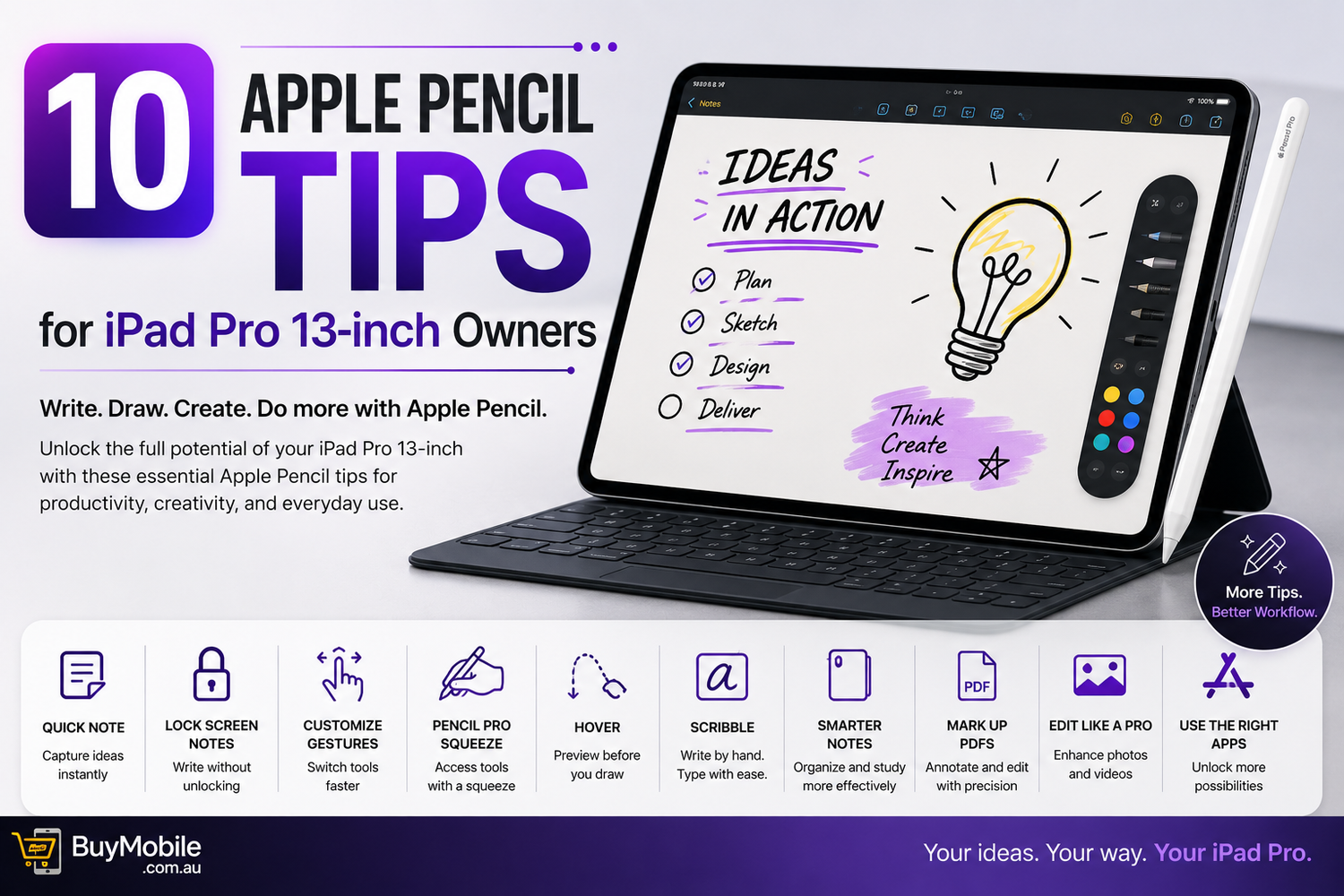
The Apple iPad Pro 13-inch offers a huge canvas for drawing, handwriting, photo editing, document markup, and everyday productivity. Pair it with a compatible Apple Pencil, and the tablet becomes an even more versatile tool for students, designers, professionals, artists, and casual users.However, simply connecting an Apple Pencil doesn't mean you're taking full advantage of everything it can do.From faster note-taking to customizable gestures and precise creative controls, there are plenty of ways to make your Apple Pencil workflow more efficient. Features can vary depending on which Apple Pencil and iPad Pro generation you own, so it's always worth checking compatibility before relying on a particular function.With that in mind, here are 10 Apple Pencil tips for iPad Pro 13-inch owners.
1. Use Quick Note to Capture Ideas Instantly
Great ideas don't always arrive when you have the Notes app open.Apple's Quick Note functionality can make it much faster to capture information without interrupting what you're doing.Depending on your iPadOS settings and Apple Pencil configuration, you can quickly access a note while working in another app. This is useful when researching online, watching a lecture, reading a document, or participating in a meeting.Instead of leaving your current task, opening Notes, creating a new page, and then returning, Quick Note reduces the number of steps.On a large 13-inch iPad Pro display, this can be particularly useful because you have plenty of screen space for combining research and handwritten thoughts.
2. Take Notes Directly From the Lock Screen
Sometimes even unlocking your iPad feels like too many steps when you need to write something immediately.Compatible iPad and Apple Pencil configurations can let you begin taking notes directly from the Lock Screen.This effectively turns your iPad Pro into a digital notebook that's ready whenever inspiration strikes.It's excellent for students entering a classroom, professionals beginning a meeting, or anyone who wants to capture a phone number, reminder, or idea quickly.Check your Notes and Apple Pencil settings to control how Lock Screen note access behaves, particularly if privacy is important to you.
3. Customize Your Apple Pencil Gestures
Some Apple Pencil models include gestures that can make common actions considerably faster.For example, supported models may let you use a gesture to switch between tools without manually tapping the toolbar every time.If you're drawing, you might want a quick way to move between your current tool and the eraser. If you're annotating documents, another configuration may better suit your workflow.Rather than simply accepting the default behaviour, explore the Apple Pencil settings on your iPad.A gesture that saves only a second may not sound significant, but during a long drawing or note-taking session, those small efficiencies add up.
4. Make the Most of Apple Pencil Pro Squeeze
Owners of Apple Pencil Pro can take advantage of its squeeze interaction in supported apps.Squeezing the Pencil can bring up contextual controls such as a tool palette, allowing you to change tools, colours, and other options without constantly moving your hand across the screen.This can be especially helpful on the large iPad Pro 13-inch.When you're working near the middle of a large canvas, reaching toward a toolbar can interrupt your flow. Bringing controls closer to where you're already working can make the experience feel much more natural.Support varies by app, so experiment with your favourite creative and productivity applications to see how they implement the feature.
5. Use Hover Before Touching the Screen
On supported iPad Pro and Apple Pencil combinations, Apple Pencil hover can show where the Pencil will interact before the tip actually touches the display.For artists, this can provide additional confidence when placing a brushstroke.For other tasks, hover can help with precise interface interactions and previews in supported apps.The feature makes the Pencil feel less like a basic stylus and more like a sophisticated input device.Spend some time learning how your favourite apps respond to hover. Different applications may use it in different ways, and creative software can take particular advantage of the additional input information.
6. Try Scribble Instead of the Keyboard
Apple Pencil isn't limited to handwritten notes.With Scribble, you can write by hand in supported text fields and have iPadOS convert your handwriting into typed text.This can be useful when you're already holding the Pencil and don't want to switch to the on-screen or physical keyboard.You might use it to enter a web search, complete a form, rename a document, or write a short message.Scribble can make navigating iPadOS feel more fluid for people who prefer handwriting.There are also editing gestures worth learning. Once you become comfortable with handwriting-based text input, the Apple Pencil can remain in your hand for much more of your workflow.
7. Turn Handwritten Notes Into a Better Study System
The combination of Apple Pencil and the iPad Pro's large display makes an excellent digital study environment.Instead of simply writing pages of notes, build a system around them.Use headings to separate subjects, highlight important concepts, add diagrams, mark questions for later review, and organize material into folders.Depending on the apps you use, handwritten content may also benefit from search and organization features.Students can combine lecture notes with screenshots, PDFs, diagrams, web research, and typed information within the same digital workflow.The biggest advantage over a traditional notebook isn't simply that you're writing on a screen. It's that your notes can become part of a much larger, organized digital workspace.
8. Mark Up PDFs and Documents
Apple Pencil is particularly useful when working with PDFs.Instead of printing a document, writing comments by hand, scanning it, and sending it back, you can annotate compatible documents directly on your iPad.Circle an important paragraph, underline a sentence, add a handwritten comment, or draw an arrow toward something that needs attention.This is useful for contracts, reports, presentations, assignments, design drafts, and other documents.The 13-inch iPad Pro is especially well suited to this because its spacious display provides more room to view a document at a comfortable size while still leaving space for handwritten annotations.For professionals and students, PDF markup alone can justify carrying an Apple Pencil.
9. Use Apple Pencil for Photo and Video Editing
Apple Pencil isn't only for artists and note-takers.Its precision can also be valuable when editing photos and videos.In compatible applications, the Pencil can make it easier to perform detailed selections, create masks, adjust specific areas of an image, draw graphics, or interact precisely with editing controls.Video editors can also benefit when navigating complex timelines or making precise adjustments in supported apps.Your finger is excellent for general touchscreen interaction, but it covers a relatively large portion of the display.The fine tip of an Apple Pencil gives you greater visibility around the exact point you're selecting.Combine that precision with the large iPad Pro display, and you have a highly capable portable editing setup.
10. Build a Workflow Around Your Favourite Apps
The final tip is arguably the most important: don't treat Apple Pencil as a feature you use only inside Apple Notes.Explore applications that take full advantage of Pencil input.Digital artists can use professional drawing and illustration software. Students can experiment with dedicated note-taking apps. Designers can work with graphics and layout tools, while photographers and video creators can use editing applications optimized for iPad.Different apps also support Apple Pencil features in different ways.An application designed specifically around Pencil interaction may offer a considerably richer experience than one where stylus support is secondary.Think about what you actually use your iPad Pro for, then choose apps that turn the Pencil into a core part of that workflow.
Bonus Tip: Keep Your Apple Pencil Charged
The best Apple Pencil feature isn't much use if the battery is empty.Compatible Apple Pencil models can attach magnetically to supported iPads, with charging behaviour depending on the specific Pencil and iPad combination.Develop a habit of putting the Pencil back in its proper place when you're finished.This helps keep it accessible and, where supported, ready for your next session.It also reduces the chance of leaving an expensive accessory somewhere else.
Which Apple Pencil Should iPad Pro 13-inch Owners Use?
Compatibility depends on the exact generation of your 13-inch iPad Pro, so don't assume every Apple Pencil works with every model.Newer iPad Pro models may support options such as Apple Pencil Pro and Apple Pencil (USB-C), while older iPad Pro generations have different compatibility requirements and may use different screen-size naming.Features such as squeeze, barrel roll, haptic feedback, hover, pressure sensitivity, wireless pairing, and charging also vary between Apple Pencil models.Before purchasing, check Apple's current compatibility information for your exact iPad model.Choosing the correct Pencil is essential because some of the most useful tips above depend on hardware-specific capabilities.