


































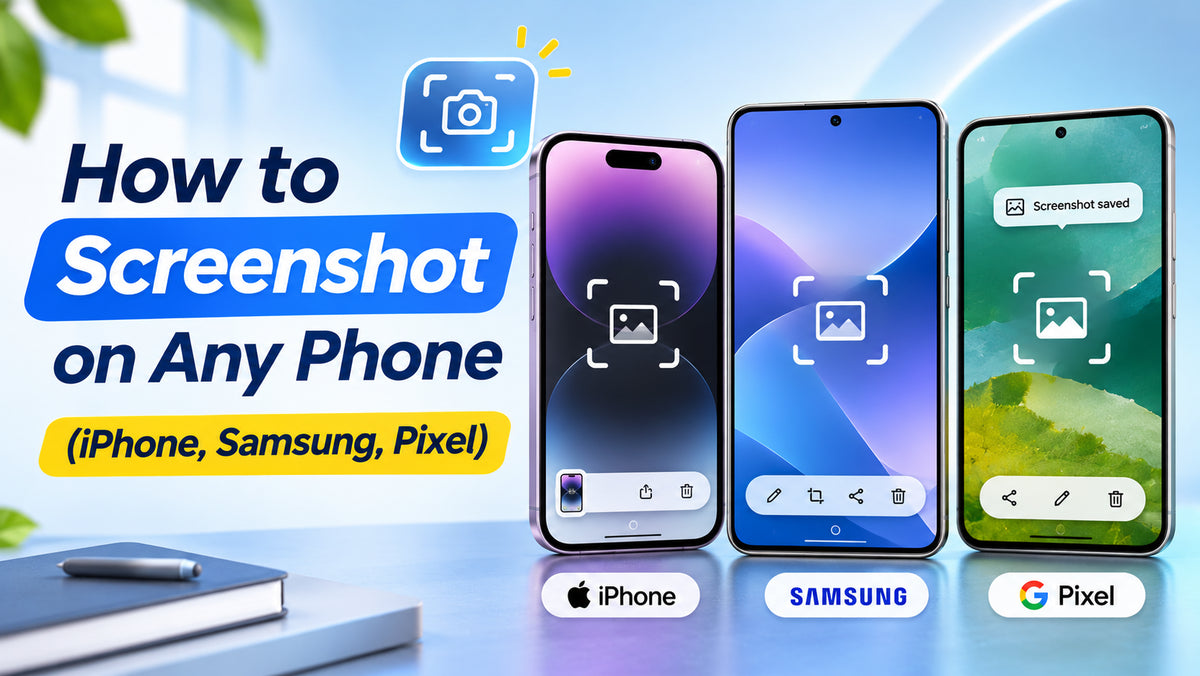
On most Android phones, including Samsung Galaxy and Google Pixel, you take a screenshot by pressing the Power (side) button and Volume Down at the same time. On an iPhone with Face ID, press the side button and Volume Up together. Tap and release both buttons quickly rather than holding them, or you may trigger the power menu or Siri instead.
That covers the basics, but every phone also has quicker gestures, scrolling screenshots and editing tools that make captures far more useful. Here is how to screenshot on Android and iPhone, plus where your images end up.
How to Screenshot on Android: Samsung Galaxy
Samsung gives you more ways to capture the screen than almost any other brand.
- Buttons: press the side key and Volume Down together.
- Palm swipe: swipe the edge of your hand across the screen. Turn it on under Settings, Advanced features, Motions and gestures, Palm swipe to capture.
- Scroll capture: after a screenshot, tap the scroll icon in the toolbar that appears at the bottom to keep extending the capture down a long page or chat.
- S Pen: on models with an S Pen, such as the Samsung Galaxy S26 Ultra, use Screen write or Smart select from the Air command menu to capture and annotate a specific area.
The toolbar that pops up after each capture also lets you crop, draw, tag and share without opening the Gallery app.
How to Screenshot on Google Pixel
- Buttons: press Power and Volume Down together.
- Recent apps: swipe up from the bottom and hold to open the app overview, then tap Screenshot under the app you want.
- Scrolling screenshot: after capturing, tap Capture more to include the rest of a long page, then drag the handles to choose how much to keep.
- Quick Tap: on supported Pixels, double-tap the back of the phone to take a screenshot. Set it up under Settings, System, Gestures, Quick Tap.
On phones like the Google Pixel 10, you can also long-press the home handle or navigation bar to use Circle to Search on what is on screen, which is often quicker than screenshotting something just to look it up.
How to Screenshot on Other Android Phones
Power plus Volume Down works on almost every Android phone, including OnePlus, Nothing, Oppo and Motorola. Many brands add their own shortcut, such as a three-finger swipe down, which you will usually find in Settings under gestures or accessibility. Search Settings for "screenshot" if you can't spot it.
How to Screenshot on iPhone
iPhones with Face ID
Press the side button and Volume Up at the same time, then let go. This applies to every recent model, including the Apple iPhone 18 Pro.
iPhones with a Home button
Press the side (or top) button and the Home button together.
Full-screen previews and full-page captures
Since iOS 26, a new screenshot opens as a large, full-screen preview with tools to mark up, share or use Visual Intelligence to search for what is on screen. If you prefer the old small thumbnail in the corner, turn off Full-Screen Previews under Settings, General, Screen Capture. In Safari and some other apps, tap Full Page in the editor to save an entire web page as a PDF.
Screenshot without buttons
Go to Settings, Accessibility, Touch, Back Tap, and assign Screenshot to a double or triple tap on the back of the phone. It is handy if your buttons are stiff or you use a chunky case.
Quick Comparison
| Phone | Button shortcut | Scrolling capture |
|---|---|---|
| iPhone (Face ID) | Side + Volume Up | Full Page (some apps) |
| Samsung Galaxy | Side + Volume Down | Scroll icon in toolbar |
| Google Pixel | Power + Volume Down | Capture more |
Where Do Screenshots Go?
- iPhone: the Photos app, in the Screenshots collection under Media Types.
- Samsung: the Gallery app, in the Screenshots album.
- Pixel: Google Photos, under Collections or Library, then Screenshots.
Screenshots add up fast. Clear them out every few weeks, or check our guide to how much phone storage you really need if you are always running short.
Screenshot Not Working? Try These Fixes
- Press both buttons at exactly the same moment and release straight away.
- Some banking, streaming and work apps block screenshots for security. A black image is normal in those apps.
- Check your storage. A full phone can fail to save new images.
- Restart the phone if the shortcut suddenly stops responding.
FAQ
How do I screenshot on Android without the power button?
Use a gesture such as Samsung's palm swipe, Pixel's Quick Tap, or the Screenshot button in the recent apps view. Accessibility menus on most Android phones also include a screenshot shortcut.
Can I record my screen instead?
Yes. Add the Screen recorder tile to Quick Settings on Android, or Screen Recording to Control Centre on iPhone.
Does the other person know if I screenshot a chat?
Standard messaging apps don't notify anyone, but some apps, including Snapchat, do.
Conclusion
Whatever phone you use, the button shortcut is the fastest way to grab what is on screen, and the gestures and scrolling captures save time once you know they exist. If you are shopping for a new handset, browse our full mobile phone range.
Shop at BuyMobile: Google Pixel 10 | Mobile Phones