

































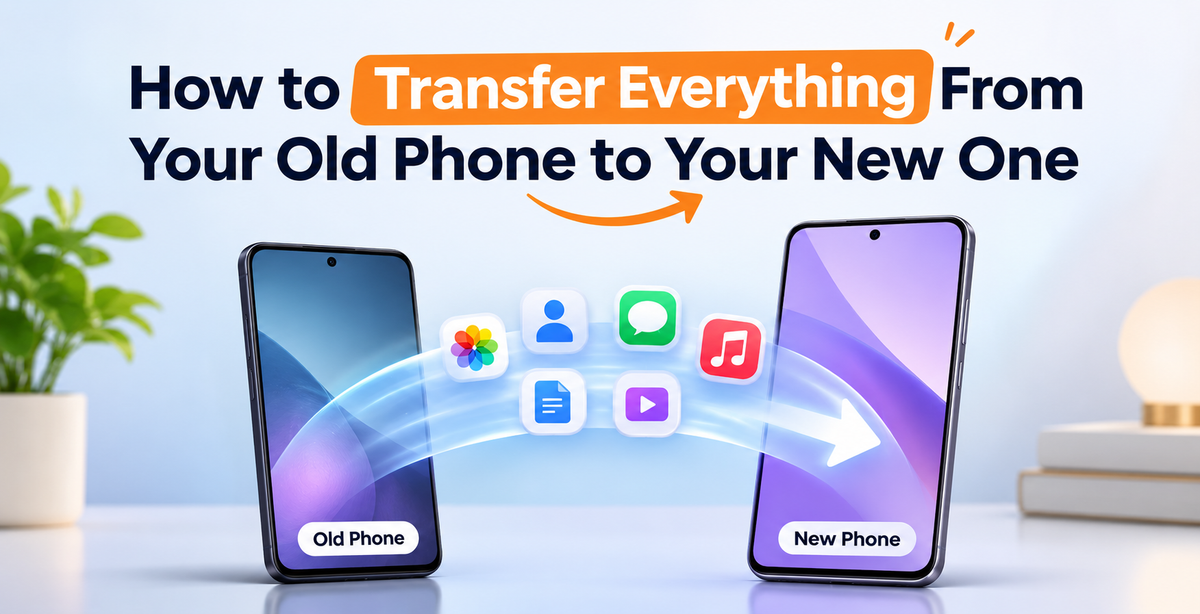
Setting up a new phone used to mean hours of fiddling. Today, the built-in transfer tools do almost all the work. Here is how to do it for every combination of phones.
Before you start: the 5-minute checklist
- Charge both phones to at least 50%, or keep them plugged in.
- Connect to Wi-Fi, ideally your home network.
- Back up your old phone to iCloud or Google, just in case.
- Know your passwords, especially your Apple ID or Google account.
- Back up WhatsApp chats inside WhatsApp (Settings > Chats > Chat backup).
iPhone to iPhone: use Quick Start
Upgrading to an iPhone 18 Pro or iPhone 18 Pro Max? Quick Start makes it painless:
- Turn on your new iPhone and place it next to your old one.
- A Quick Start prompt appears on your old iPhone. Tap Continue.
- Scan the animation on the new iPhone with the old one, then enter your old passcode.
- Choose to transfer directly from your iPhone. Keep both phones close together until it finishes.
Your apps, settings, photos and messages come across, and in most cases your WhatsApp history too.
Android to Samsung Galaxy: use Smart Switch
Moving to a Galaxy S26 Ultra, Galaxy S26 FE or Galaxy A57? Use Smart Switch:
- On your new Galaxy, follow setup until you are asked to copy apps and data, or open the Smart Switch app.
- Install Smart Switch on the old phone if needed.
- Connect wirelessly or with a USB-C cable (faster for large photo libraries).
- Select what to transfer and start.
Android to Android (Pixel and others)
Getting a Pixel 11 Pro XL or Pixel 10a? During setup, choose to copy apps and data from your old phone. You can connect with a cable or wirelessly, and Google restores your apps, contacts, photos (via Google Photos) and most settings.
Android to iPhone
- Install Apple's Move to iOS app on your Android phone.
- On the new iPhone, during setup, choose Move Data from Android.
- Enter the code shown on the iPhone into the Android app.
- Select contacts, messages, photos, calendars and more, and let it run.
iPhone to Android
Samsung users can use Smart Switch with a cable or iCloud sign-in. For Pixel and other Android phones, use the built-in copy tool during setup with a cable. Before switching, turn off iMessage on your iPhone (Settings > Apps > Messages) so texts from iPhone users reach your new number.
After the transfer
- Sign in to banking, authenticator and two-factor apps. These often need to be set up again for security.
- Check your eSIM or move your physical SIM.
- Re-pair your earbuds and smartwatch, such as AirPods 5, Galaxy Buds3 Pro or the Pixel Watch 5.
- Confirm photos have fully synced before wiping the old phone.
- When you are happy, factory reset the old phone before selling or gifting it.
Ready for an upgrade?
Browse our new phones and full mobile range, and grab a fast charger or USB-C cable from our accessories to make setup quicker.