



































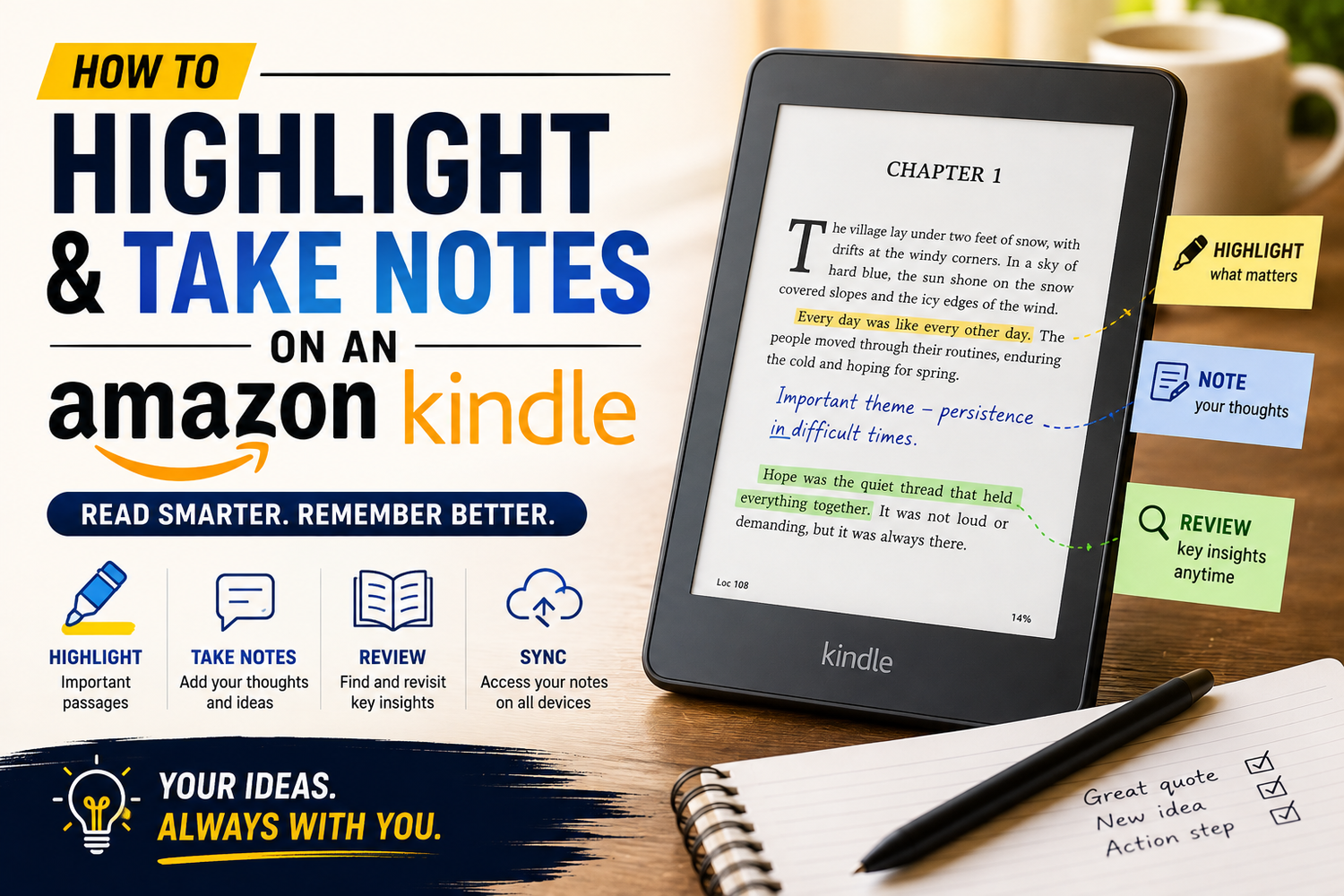
One of the biggest advantages of reading on an Amazon Kindle is that you can do much more than simply turn digital pages. Kindle devices make it easy to highlight important passages, save memorable quotes, add personal notes, and return to your annotations later.These features can be especially useful for students, researchers, professionals, book-club members, and anyone who likes to engage more deeply with what they read.Instead of using a highlighter pen or writing in the margins of a physical book, Kindle lets you keep your annotations organized digitally. Better still, supported annotations can sync across compatible Kindle devices and apps when synchronization is enabled.If you're new to Kindle or haven't explored its annotation tools yet, here's how to highlight and take notes on an Amazon Kindle.
1. How to Highlight Text on a Kindle
Highlighting is one of the simplest Kindle features to use.While reading a supported ebook, press and hold on the first word you want to highlight. Selection handles should appear around the text.Drag the handles until you've selected the complete sentence or passage you want to save.A menu will appear with available options. Choose the highlighting option to save the selected passage.The exact interface can vary depending on your Kindle model and software version, but the basic process remains straightforward.Highlighting is perfect for important facts, memorable quotes, definitions, arguments, or passages you want to revisit later.
2. How to Add a Note
Sometimes highlighting isn't enough.You may want to record why a passage is important, write a question, summarize an argument, or save an idea inspired by what you've just read.That's where Kindle notes become useful.Select the relevant text in the same way you would create a highlight. When the menu appears, choose the option to add a note.Enter your comment using the on-screen keyboard and save it.Your note will then remain associated with that section of the book.This effectively gives you a digital version of writing in the margins without permanently marking the page.
3. You Can Add Notes to Highlights
Highlights and notes work particularly well together.Imagine you're reading a business book and find a paragraph explaining an interesting strategy.You could highlight the paragraph so you can find it again, then attach a note such as, "Try this approach in next month's project."Students could highlight an important concept and add a short explanation in their own words.Book-club readers might save their reaction to a character or plot development.The highlight preserves the original passage, while the note records your own thinking.This combination can turn passive reading into a much more active experience.
4. Review Your Highlights and Notes
The real value of highlighting comes from reviewing what you've saved.Kindle provides ways to access annotations without manually searching through every page of a book.While reading, open the book's menu and look for the notes, highlights, or annotations section available on your device.From there, you can review the passages you've highlighted and the notes you've attached.Selecting an annotation can typically help you return to the relevant location in the book.This is particularly helpful when revising a textbook, preparing for a meeting, writing a book review, or returning to an ebook you finished months ago.Instead of rereading the entire book, you can concentrate on the ideas you considered most important.
5. Remove a Highlight You No Longer Need
It's easy to over-highlight when you first start using the feature.Fortunately, highlights aren't permanent.If you decide that a highlighted passage is no longer useful, select or tap the highlighted text and choose the available option to remove or delete the highlight.The wording and menu layout may differ depending on the Kindle device or app you're using.Removing unnecessary highlights can make future review sessions much easier.If half of every page is highlighted, it becomes difficult to distinguish genuinely important information from everything else.Being selective usually makes annotations more valuable.
6. Edit or Delete Your Notes
Your thoughts can change as you continue reading.A question you wrote in chapter two might be answered in chapter seven. An interpretation you initially had about a character might completely change by the end of the book.Kindle notes can generally be edited or removed.Open the relevant annotation, select the note, and use the available editing or deletion controls.This allows your annotations to evolve with your understanding of the book.For students and researchers, editing notes can be particularly useful when reviewing material several times.You can turn an initial question into a concise explanation once you understand the subject better.
7. Use Different Highlight Colours in Kindle Apps
When reading through supported Kindle apps on devices with colour displays, you may have access to multiple highlighting colours.Different colours can be useful for organizing information.For example, you might use one colour for important facts, another for quotes, and another for passages you want to research later.Students could create a simple system where different colours represent definitions, examples, arguments, and exam material.On traditional monochrome Kindle e-readers, the visual experience naturally differs because of the display technology and model capabilities.The important thing is consistency. If you're using colour coding, decide what each colour means before creating dozens of highlights.
8. Sync Annotations Across Devices
Many Kindle users read on more than one device.You might use your Kindle e-reader at night, continue reading through the Kindle app on your phone while commuting, and occasionally open the book on a tablet.Amazon's synchronization features can keep supported reading progress and annotations connected across compatible devices when you're signed into the same account and syncing is enabled.This means a highlight created on one supported device may be available when you continue reading elsewhere.For anyone who switches regularly between devices, synchronization makes digital annotations considerably more useful.Make sure your devices connect to the internet periodically so that new reading activity has an opportunity to sync.
9. Use Highlights for Studying
Kindle highlighting can be a powerful study tool when used strategically.Instead of highlighting entire paragraphs, try selecting only the sentence or phrase containing the key idea.Then add a short note explaining the concept in your own words.This forces you to think about what you've read rather than simply marking text.You can also use notes to create questions for yourself.For example, after highlighting an important historical event, add a note asking why it happened or what consequences followed.When reviewing the material later, these questions can help test your understanding.A small number of thoughtful annotations is often more useful than hundreds of random highlights.
10. Highlighting Is Useful Beyond Study
You don't need to be studying for an exam to benefit from Kindle annotations.People reading personal-development books can highlight advice they want to apply.Business readers can save strategies and statistics.Travellers can mark useful information in guidebooks.Fans of novels can preserve favourite quotes or note interesting details for a book-club discussion.Writers may highlight examples of excellent dialogue, description, or storytelling techniques.Your Kindle can effectively become a personal archive of the most valuable ideas you've encountered while reading.
Tips for Better Kindle Note-Taking
The most effective annotation system is usually simple.Avoid highlighting everything that sounds interesting. Ask yourself whether you're genuinely likely to want the passage again.Keep notes concise when possible. A short explanation is easier to review than a long paragraph.Consider adding keywords to notes if they help you categorize ideas.Most importantly, review your annotations.Highlights that are never revisited provide limited value. Spending a few minutes reviewing them after finishing each chapter or after completing the book can reinforce what you've learned.
Important Limitations
Highlighting and note-taking availability can vary depending on the Kindle model, Kindle app, software version, book format, publisher settings, and type of content.Some documents may offer different annotation capabilities from standard Kindle ebooks.Menus can also change as Amazon updates Kindle software.If you can't find a feature described here, check the options available for the specific book and Kindle device or app you're using.