



































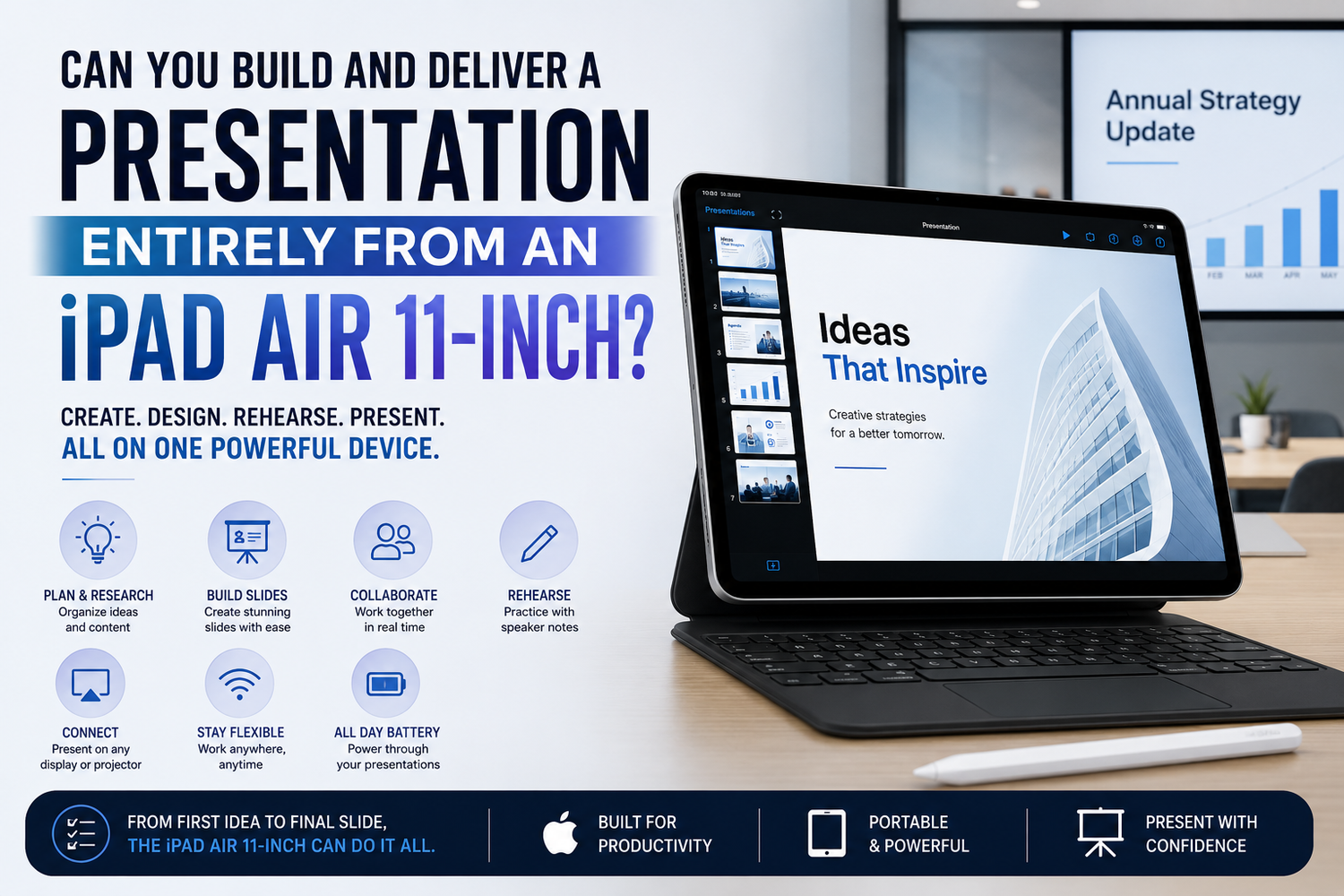
For years, creating an important presentation almost automatically meant opening a laptop. You needed a full keyboard, desktop presentation software and the right ports to connect to a projector or meeting-room display.The Apple iPad Air 11-inch challenges that assumption.With a capable processor, touchscreen interface, support for compatible keyboards and Apple Pencil models, and access to presentation apps such as Keynote, Microsoft PowerPoint and Google Slides, an iPad Air can potentially take a presentation from the first idea all the way to the meeting room.But can you realistically build and deliver an entire professional presentation without opening a laptop?For many presentations, yes. The more important question is whether the iPad workflow suits the complexity of your project.
Start With Research and Planning
Before designing slides, you need content.This is an area where the iPad Air can work particularly well.You can research through Safari, collect notes, review PDFs, read emails and organize your ideas before opening your presentation software.Multitasking can be particularly useful here. You might keep a browser available while working on your presentation or reference notes while developing individual slides.The 11-inch display provides considerably more working space than a smartphone without making the device difficult to carry.If your presentation begins as handwritten ideas, a compatible Apple Pencil can add another option. You can sketch concepts, annotate documents or brainstorm before turning those ideas into polished slides.
Which Presentation App Should You Use?
The iPad gives you several major options.Apple Keynote is an obvious choice for people working primarily within Apple's ecosystem. It provides templates, animations, charts, images and other tools for building visually appealing presentations.Microsoft PowerPoint is useful when you're collaborating with colleagues who already work with PowerPoint files or need compatibility with an existing business workflow. Some features may depend on your Microsoft account or subscription.Google Slides can make sense for teams that prioritize cloud-based collaboration and Google Workspace.The right choice isn't necessarily the app with the longest feature list.It's the one that matches what happens after you create the presentation.If the file will eventually be edited by five colleagues using PowerPoint on Windows computers, building it in PowerPoint from the beginning may reduce compatibility headaches.
Building Slides With Touch Is Surprisingly Natural
Presentation software has traditionally been designed around a mouse.An iPad changes that.Moving images, resizing objects and rearranging elements can feel intuitive because you're directly manipulating what's on the screen.For straightforward presentations containing titles, photographs, charts and short blocks of text, touch controls can be enjoyable.Apple Pencil can provide additional precision for certain tasks.You may also find yourself creating presentations differently. Instead of filling every slide with text, the touch-oriented workflow can encourage a more visual approach with larger images and simpler layouts.That's not necessarily a limitation.Often, it's better presentation design.
A Keyboard Makes a Huge Difference
Touch is excellent for arranging slides.It's less enjoyable when you need to type several hundred words.If presentations are part of your regular work, adding a compatible physical keyboard can dramatically improve the iPad Air experience.With a keyboard, you can type slide content, speaker notes and emails much more efficiently. Keyboard shortcuts can also reduce the amount of tapping required.A trackpad or mouse can make the experience feel even closer to a conventional computer when supported by your setup.However, accessories change the value calculation.An iPad Air plus a premium keyboard can cost considerably more than the tablet alone. If you're buying the complete setup specifically to replace a laptop, compare the total price rather than only looking at the iPad's starting price.
Adding Images Is One of the iPad's Strengths
Presentations often depend heavily on visuals.The iPad makes working with photographs particularly convenient because your images, cloud files and downloaded assets can be accessible from the same device you're using to create the slides.You could import photographs, crop them, make basic adjustments and place them into a presentation without transferring files between multiple devices.For a sales presentation, classroom project or travel-related talk, this can make the workflow very efficient.You can also create simple illustrations or handwritten elements using Apple Pencil and incorporate them into your slides.Just remember that images found online may be protected by copyright. Use your own material or appropriately licensed assets for professional presentations.
What About Charts and Data?
This is where your workflow can become more demanding.Simple charts and tables are manageable on an iPad. If you already have organized data, creating a visual representation for a presentation shouldn't necessarily require a computer.Complicated spreadsheet work is another matter.If your presentation requires analyzing large datasets, working with sophisticated Excel models or repeatedly moving between complex spreadsheets and presentation software, a laptop may still provide a faster and more comfortable experience.The iPad can certainly display complicated information.Creating and manipulating that information may be the bigger challenge.
Collaboration Can Work Well
Modern presentations are rarely created completely alone.You may need comments from colleagues, edits from a manager or contributions from several team members.Cloud-based presentation platforms can make this relatively straightforward.Depending on the software and account you're using, collaborators may be able to edit documents, leave comments and access updated versions without emailing files back and forth.The iPad's portability can actually become an advantage here.You can review a colleague's changes on the train, make adjustments before a meeting or quickly respond to feedback without opening a laptop.
Can You Rehearse on the iPad?
Absolutely and you should.Creating slides is only half the job.Before presenting, review the entire deck on the device you'll actually use. Check transitions, animations, embedded media, fonts and any other elements that could behave differently from what you expected.Speaker notes can also be valuable.Rather than filling slides with paragraphs, keep the visual presentation clean and place additional talking points in your notes.Practice moving through the presentation using the same controls you'll use in the real meeting.The fewer surprises you encounter during rehearsal, the more confident you'll be when presenting.
Connecting to a Projector or External Display
This is the part you should never leave until five minutes before the presentation.The iPad Air's USB-C connection can work with compatible external displays, adapters and presentation equipment, but the exact setup depends on what the venue provides.Some meeting rooms may support wireless presentation methods. Others may expect HDMI.If you're presenting somewhere unfamiliar, ask in advance.A compatible USB-C-to-HDMI adapter can be extremely useful when dealing with traditional projectors and displays.Most importantly, test the complete setup before your audience arrives whenever possible.A brilliant presentation doesn't help much when nobody can see it.
What Happens if There's No Internet?
Don't assume conference-room Wi-Fi will cooperate.If your presentation relies on cloud files, online videos or web pages, prepare for the possibility that the connection could be slow or unavailable.Keep an offline copy of important material when your chosen apps allow it.Consider downloading videos rather than depending on streaming, where licensing and software permit.You may also want to export an additional copy of your presentation such as a PDF as an emergency backup.Preparation matters regardless of whether you're presenting from an iPad or a laptop.
Where Does the iPad Air Struggle?
The iPad Air is most convincing with small-to-medium presentations.A 15-slide sales deck with photographs, charts and simple animations? Very realistic.A university presentation with research, diagrams and speaker notes? Also a strong use case.A highly complex corporate deck containing advanced animations, unusual fonts, linked spreadsheets, extensive media and desktop-specific PowerPoint features?That's where a computer may remain preferable.Desktop presentation applications can offer deeper control for sophisticated workflows, and a larger monitor makes managing dozens of detailed slides easier.The iPad doesn't need to replace a laptop in every scenario to be useful.
Travelling With an iPad Air Changes the Equation
Business travel is where the 11-inch iPad Air can make an especially strong argument.Instead of carrying a larger laptop solely because you might need to edit a presentation, you can potentially travel with the iPad, keyboard and appropriate adapter.You can review your deck at the airport, make changes during the flight and present when you arrive.Afterwards, the same device becomes an entertainment screen for movies, reading or games.For someone who regularly presents while travelling, that versatility can be extremely attractive.
Can You Really Go From Blank Slide to Presentation?
Yes for the right type of project.The iPad Air 11-inch can realistically handle the complete presentation workflow: researching your subject, planning ideas, writing content, creating slides, adding images and charts, collaborating, rehearsing and ultimately displaying the presentation to an audience.A keyboard makes longer editing sessions considerably easier. Apple Pencil can enhance brainstorming and visual work, while the correct adapter or wireless setup is essential for reliable presentation-day connectivity.Where the iPad becomes less convincing is in highly complicated desktop workflows involving advanced formatting, enormous datasets or specialist presentation features.