



































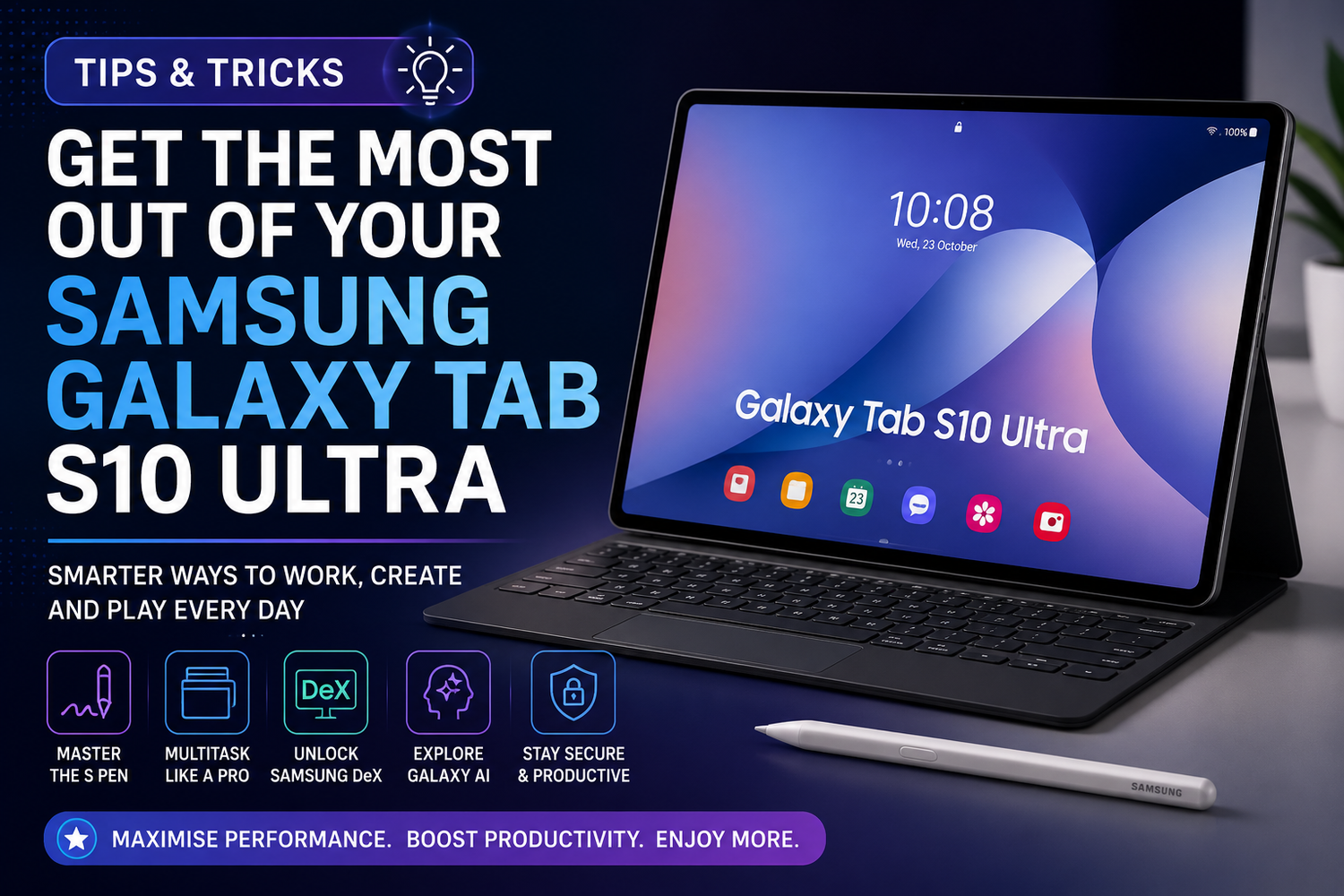
The Samsung Galaxy Tab S10 Ultra is much more than a large Android tablet. With its stunning display, powerful processor, Galaxy AI features, and included S Pen, it is designed to handle productivity, creativity, entertainment, and multitasking with ease. Whether you use it for work, studying, gaming, or streaming, there are plenty of features that can help you unlock its full potential.Many users only scratch the surface of what this premium tablet can do. By learning a few useful tips and tricks, you can improve your workflow, personalise your experience, and make everyday tasks much easier. Here are some of the best ways to get the most out of your Samsung Galaxy Tab S10 Ultra.
Customise the Home Screen for Better Productivity
A well organised home screen can save valuable time throughout the day.Place your most frequently used apps on the first page and organise them into folders such as Work, Entertainment, Photography, and Social Media. Samsung also allows you to resize widgets so important information like your calendar, weather, and reminders are always visible.Keeping everything organised reduces the time spent searching for apps and improves overall efficiency.
Master Multi Window Mode
One of the biggest strengths of the Galaxy Tab S10 Ultra is multitasking.Split Screen allows you to run multiple apps simultaneously. You can browse the internet while taking notes, watch educational videos while working on assignments, or reply to emails while viewing documents.The large display provides enough space for several applications without feeling crowded, making the tablet feel more like a laptop than a traditional tablet.
Use Pop Up Windows for Faster Workflow
In addition to Split Screen, Samsung allows supported apps to open in floating windows.This feature is useful when replying to messages, using a calculator, checking emails, or referencing information without leaving your current task.Floating windows can be resized and moved around the screen, creating an even more flexible multitasking experience.
Take Full Advantage of the S Pen
The included S Pen is one of the Galaxy Tab S10 Ultra's most valuable features.Instead of using it only for handwriting, explore its full capabilities. You can annotate PDF files, edit screenshots, sketch ideas, create digital artwork, highlight documents, and navigate the interface with greater precision.The low latency makes writing feel natural, making the tablet ideal for students, designers, and professionals.
Explore Samsung Notes
Samsung Notes is one of the best productivity applications available on the tablet.It supports handwritten notes, typed text, voice recordings, images, and PDF annotations in a single workspace.You can organise notes into folders, sync them across compatible Galaxy devices, and quickly search handwritten content using built in recognition features.This makes Samsung Notes an excellent replacement for traditional notebooks.
Make the Most of Galaxy AI Features
Galaxy AI introduces several intelligent tools that improve productivity.Features such as note summarisation, writing assistance, translation, and document organisation help users complete tasks more efficiently.These tools are particularly useful for students preparing assignments, professionals reviewing reports, and anyone managing large amounts of information.Learning how these AI features work can significantly reduce time spent on repetitive tasks.
Connect a Keyboard and Mouse
Adding a Bluetooth keyboard and mouse transforms the Galaxy Tab S10 Ultra into a highly capable workstation.Typing becomes faster for emails, reports, and documents, while a mouse provides more precise control during editing or multitasking.Combined with the tablet's large display, this setup creates a desktop like experience suitable for remote work or study.
Try Samsung DeX Mode
Samsung DeX is one of the standout productivity features.DeX changes the tablet interface into a desktop style environment with resizable windows, a taskbar, and improved file management.Users familiar with traditional computers will appreciate the desktop layout, especially when working with multiple applications simultaneously.For many users, DeX can comfortably replace a laptop for everyday productivity.
Optimise Battery Life
Although the Galaxy Tab S10 Ultra offers impressive battery capacity, good habits can help it last even longer.Reducing screen brightness when indoors, enabling adaptive brightness, closing unused background apps, and using battery optimisation settings all contribute to longer usage between charges.Dark mode may also help reduce power consumption while providing a more comfortable viewing experience at night.
Improve Security
Protecting your personal information should always be a priority.Enable fingerprint recognition or facial recognition for quick and secure access.Samsung Knox provides additional security features that help protect sensitive files and personal data.Keeping software updated also ensures you receive the latest security improvements and performance enhancements.
Personalise the S Pen Shortcuts
The S Pen supports custom shortcuts that allow faster access to your favourite tools.You can assign frequently used applications such as Samsung Notes, Screen Write, Smart Select, or drawing apps for instant access whenever you remove the S Pen.This saves time and makes the tablet even more efficient during everyday use.
Enhance Your Entertainment Experience
The Galaxy Tab S10 Ultra features an outstanding display and powerful speakers, making it an excellent entertainment device.Enable Dolby Atmos for richer sound while watching movies or listening to music.Streaming services, games, and videos look particularly impressive on the large AMOLED display with vibrant colours and deep contrast.Pairing wireless earbuds further enhances the entertainment experience.
Keep Storage Organised
Large tablets often become storage hubs for photos, videos, downloads, and work files.Regularly removing unnecessary files, organising folders, and using cloud storage services helps maintain smooth performance while ensuring important documents remain easy to locate.Good file management also prevents storage from filling up unexpectedly.
Use Quick Settings Efficiently
The Quick Settings panel provides fast access to commonly used features such as WiFi, Bluetooth, screen recording, Eye Comfort Shield, and battery saver.Customising these shortcuts allows you to reach your most frequently used settings without opening the full Settings application.This small adjustment improves everyday convenience.