


































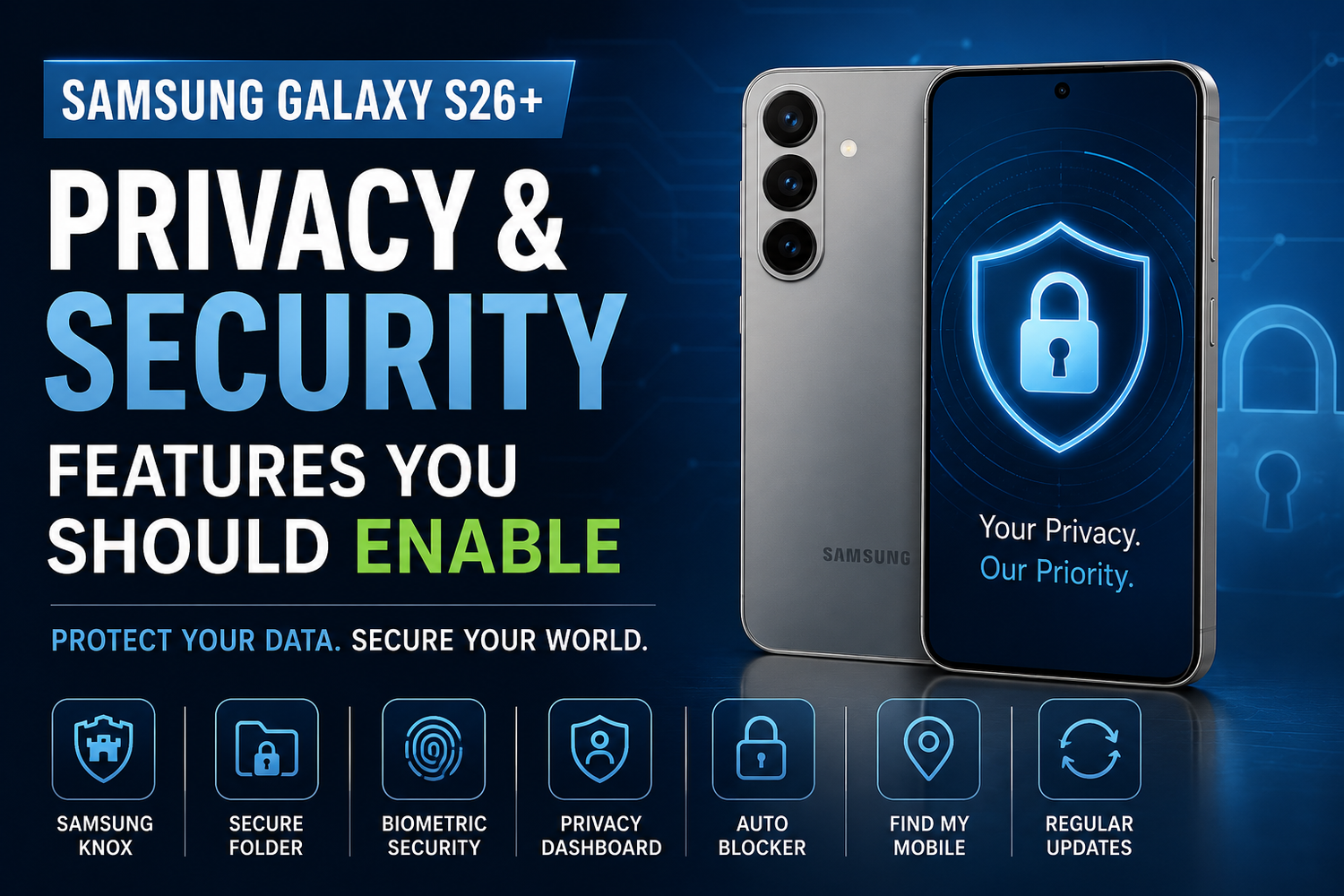
Your smartphone holds some of your most valuable personal information, including passwords, banking apps, private photos, emails, work documents, and payment details. With so much sensitive data stored on a single device, protecting your privacy has become just as important as choosing the right smartphone. Fortunately, the Samsung Galaxy S26+comes equipped with a wide range of advanced privacy and security features designed to keep your information safe.Powered by Samsung's latest One UI and enhanced with Galaxy AI, the Galaxy S26+ offers intelligent protection without making security complicated. Whether you're concerned about online privacy, app permissions, or protecting personal files, enabling a few key settings can significantly improve your overall security.Here are the most important privacy and security features every Samsung Galaxy S26+ owner should enable.
Set Up Fingerprint and Face Recognition
The first layer of protection begins with your lock screen.The Samsung Galaxy S26+ supports both an ultrasonic fingerprint scanner and facial recognition, allowing you to unlock your phone quickly while preventing unauthorized access.Fingerprint authentication is fast, secure, and works even during busy days when convenience matters. Face recognition provides another easy option for unlocking your device.For maximum security, it's also recommended to create a strong PIN or password as a backup authentication method.
Enable Samsung Knox Security
Samsung Knox is one of the Galaxy S26+'s biggest security advantages.Built directly into both the hardware and software, Knox continuously protects your smartphone from malware, unauthorized access, and various cyber threats.It works quietly in the background while securing sensitive information, helping users feel confident when storing personal or business data.Keeping Samsung Knox enabled ensures your device benefits from enterprise-grade protection every day.
Review App Permissions Regularly
Many applications request access to your camera, microphone, contacts, location, and storage.Not every app actually needs these permissions.The Galaxy S26+ allows you to review exactly which permissions each application has received and easily change them whenever necessary.Instead of granting permanent access, consider allowing permissions only while an app is actively being used.This simple adjustment helps reduce unnecessary data collection.
Use the Privacy Dashboard
One UI includes a helpful Privacy Dashboard that shows how applications interact with your personal information.You can quickly view which apps have recently accessed:
1.Camera
2.Microphone
3.Location
4.Contacts
5.Calendar
6.Files
This transparency allows you to identify unusual behaviour and remove unnecessary permissions if required.It's one of the easiest ways to stay informed about your smartphone's privacy.
Secure Sensitive Files with Secure Folder
One of Samsung's most valuable security features is Secure Folder.
This encrypted space allows users to safely store:
1.Personal photos
2.Videos
3.Banking applications
4.Work documents
5.Password managers
6.Private notes
Access requires separate authentication, meaning even someone who unlocks your phone cannot view Secure Folder without additional verification.It's ideal for protecting confidential information.
Enable Find My Mobile
Losing your smartphone can expose significant personal information.Samsung's Find My Mobile feature allows you to:
1.Locate your device remotely.
2.Lock the phone.
3.Display contact information.
4.Ring the device.
5.Erase personal data if necessary.
6.enabling this feature before you need it provides valuable peace of mind in case your phone is lost or stolen.
Turn On Auto Blocker
The Galaxy S26+ includes Samsung's Auto Blocker, an extra layer of protection against unauthorized software installations and potential security threats.When enabled, Auto Blocker helps prevent unknown applications from being installed outside trusted sources, reducing the risk of malware and malicious software.For most users, keeping this feature enabled is a simple yet effective way to improve device security.
Manage Location Access Carefully
Location services are incredibly useful for maps, ride-sharing apps, and weather updates, but they should be managed carefully.The Galaxy S26+ allows users to choose between:
1.Allow all the time
2.Allow only while using the app
3.Ask every time
4.Don't allow
Restricting continuous location access improves privacy while also helping conserve battery life.Only trusted applications should have ongoing location access.
Hide Sensitive Lock Screen Notifications
Notifications can sometimes reveal personal information before you even unlock your phone.Messages, verification codes, and banking alerts may all appear on the lock screen.The Galaxy S26+ allows you to hide notification content while still displaying that a notification has arrived.This small setting greatly improves privacy in public places.
Enable Two-Factor Authentication
Passwords alone are no longer enough.Wherever possible, enable two-factor authentication for your online accounts.Whether you use Samsung Account, Google Account, banking services, or social media platforms, two-factor authentication provides an additional layer of protection.Even if someone discovers your password, they cannot access your account without secondary verification.
Keep Software Updated
Security threats evolve constantly.Samsung regularly releases software updates containing important security patches and system improvements.Keeping automatic updates enabled ensures your Galaxy S26+ remains protected against newly discovered vulnerabilities while also benefiting from new Galaxy AI features and performance improvements.Updating your phone regularly is one of the easiest ways to maintain long-term security.
Use Password Manager Features
Strong passwords are essential.Rather than reusing the same password across multiple websites, consider using Samsung Pass or another trusted password manager.These tools securely store login credentials while allowing quick authentication using biometric security.This approach both improves convenience and reduces online security risks.
Protect Your Online Activity
Public WiFi networks can expose personal information if used carelessly.Whenever possible:
1.Connect only to trusted WiFi networks.
2.Avoid entering sensitive financial information on unknown networks.
3.Consider using secure connections for online banking and shopping.
Combined with Samsung's built-in security protections, these habits help reduce online risks.
AI-Powered Scam and Threat Detection
Galaxy AI also contributes to smartphone security by helping identify suspicious links, unusual activity, and potential threats.As AI capabilities continue to improve, the Galaxy S26+ becomes better at recognizing harmful behaviour before it affects your personal information.These intelligent protections work quietly in the background while requiring very little user interaction.
Back Up Your Data Regularly
Security isn't only about preventing attacks.Backing up your data ensures valuable photos, contacts, documents, and settings aren't permanently lost if your device becomes damaged, lost, or replaced.Samsung Cloud and Google backup services make automatic backups simple and reliable.Regular backups provide peace of mind regardless of what happens to your phone.