


































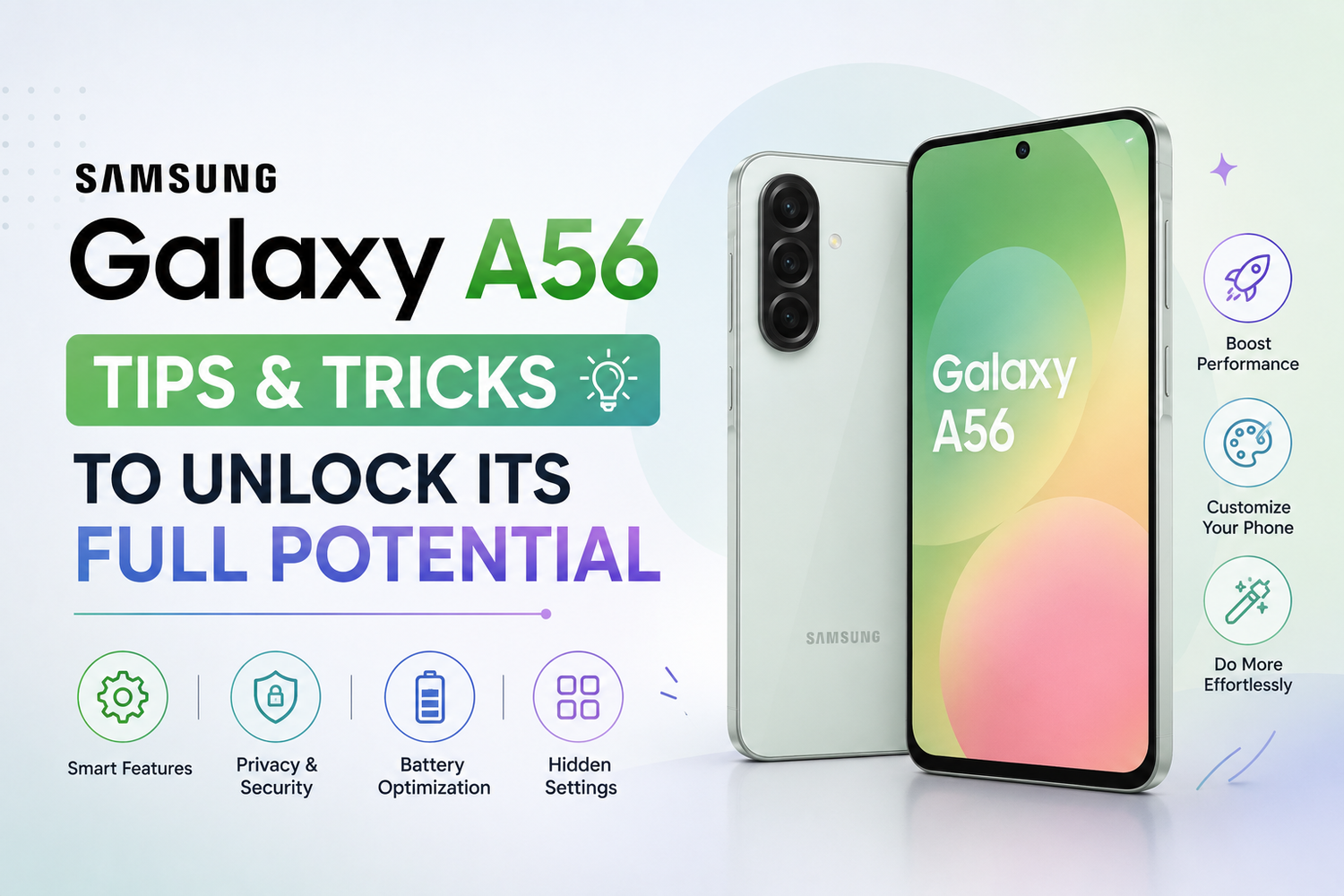
The Samsung Galaxy A56 is quickly becoming one of the hottest mid-range smartphones of the year and for good reason. It combines premium design, smooth performance, impressive cameras, and Samsung’s polished software experience without demanding flagship-level money.But here’s the thing most users don’t realize:The Galaxy A56 has a ton of hidden features and smart settings that can completely transform your experience.Whether you’ve just unboxed the phone or have been using it for weeks, these tips and tricks will help you unlock the realpower of the Galaxy A56.From boosting battery life to improving gaming performance and customizing One UI like a pro, here’s how to get the absolute best out of Samsung’s trending smartphone.
Customize Your Lock Screen Like a Pro
Samsung’s One UI software gives users incredible customization options, and the Galaxy A56 is no exception.Instead of sticking with the default lock screen, you can personalize:
-
Clock styles
-
Fonts
-
Widgets
-
Wallpaper effects
-
Notification layouts
You can even create different lock screen styles for work, gaming, or personal use.Samsung’s built-in customization tools make the phone feel uniquely yours without needing third-party apps.If you really want next-level customization, Samsung’s Good Lock app opens even more powerful features that most users never explore.
Turn On Adaptive Battery for Better Battery Life
Battery life is one of the Galaxy A56’s biggest strengths, but enabling Adaptive Battery makes it even smarter.This feature uses AI to learn your usage habits and reduce background activity for apps you rarely use.
The result?
-
Longer battery life
-
Less background drain
-
Better standby performance
To enable it:
Settings → Battery → Background Usage Limits → Adaptive BatteryIt’s a small setting that makes a surprisingly big difference over time.
Use RAM Plus for Smoother Multitasking
If you constantly switch between apps, stream videos, browse social media, and game at the same time, this feature is essential.Samsung’s RAM Plus uses part of your storage as virtual RAM to improve multitasking performance.The Galaxy A56 already feels smooth, but enabling additional RAM can help keep apps active in the background longer.To adjust RAM Plus:
Settings → Battery & Device Care → Memory → RAM PlusFor heavy users, this trick helps the phone feel much faster during everyday use.
Unlock Better Gaming Performance
The Galaxy A56 handles gaming surprisingly well, especially for a mid-range smartphone.But Samsung hides several gaming optimization features that many users ignore.
Open Game Booster while gaming to:
-
Block notifications
-
Monitor temperature
-
Improve touch response
-
Optimize performance
-
Save battery during gameplay
You can also enable Priority Mode to minimize distractions completely during competitive gaming sessions.Whether you play PUBG Mobile, COD Mobile, or Asphalt Legends, these settings genuinely improve the experience.
Improve Camera Quality Instantly
The Galaxy A56 camera system is already impressive, but a few quick tweaks can seriously improve your photos.
Turn On Scene Optimizer
Samsung’s AI camera feature automatically detects scenes and improves:
-
Colors
-
Brightness
-
Contrast
-
Dynamic range
Perfect for food photos, landscapes, pets, and social media content.
Use the 50MP Mode for Maximum Detail
By default, Samsung uses pixel binning for balanced photos. But if you want ultra-sharp images, switch to full-resolution mode.This is especially useful for:
-
Daylight photography
-
Landscapes
-
Travel shots
-
Editing photos later
You’ll notice significantly more detail in your pictures.
Master Night Mode
Low-light photography on the Galaxy A56 is surprisingly strong.For the best results:
-
Keep the phone steady
-
Use Night Mode manually
-
Avoid zooming in dark scenes
The AI processing does a great job improving shadows and reducing noise.
Enable Eye Comfort Shield
People spend hours staring at their phones daily, and eye strain becomes real fast.Samsung’s Eye Comfort Shield reduces blue light and adjusts color temperature based on the time of day.This feature makes nighttime usage much more comfortable.To enable:
Settings → Display → Eye Comfort ShieldYour eyes will thank you later.
Speed Up the Phone with Animation Tweaks
Want your Galaxy A56 to feel even faster?Reduce animation speeds.This simple trick makes apps open faster and gives the phone a snappier feel overall.
Here’s how:
-
Enable Developer Options
-
Open Developer Options
-
Reduce:
-
Window Animation Scale
-
Transition Animation Scale
-
Animator Duration Scale
-
Set them to 0.5x for smoother performance.This is one of the oldest Android tricks and it still works amazingly well.
Use Samsung Modes & Routines
This feature is criminally underrated.Samsung’s Modes & Routines can automate your phone based on your habits.
For example:
-
Turn on battery saver automatically at night
-
Launch Spotify when Bluetooth connects
-
Enable silent mode during work hours
-
Open gaming mode when launching games
It’s like having a personal assistant built into your smartphone.Once you start using it, it becomes addictive.
Secure Your Data Properly
The Galaxy A56 includes several powerful security features that many users overlook.
Secure Folder
This hidden encrypted space allows you to:
-
Hide apps
-
Store private photos
-
Lock documents
-
Separate work and personal data
Perfect for privacy-conscious users.
Enable Face Unlock + Fingerprint Together
Using both security methods improves convenience and security simultaneously.Samsung’s fingerprint sensor is fast, but face unlock makes daily usage even smoother.
Take Advantage of Samsung DeX Alternatives
While the Galaxy A56 may not fully support flagship-level DeX features, Samsung still offers excellent multitasking tools.
Use:
-
Split-screen mode
-
Floating windows
-
Edge Panels
These features transform multitasking completely.You can watch YouTube while chatting, browse while taking notes, or manage multiple apps simultaneously.For students and professionals, this is incredibly useful.
Keep Storage Clean Automatically
Most users wait until their phone slows down before cleaning storage.Instead, use Samsung’s built-in optimization tools regularly.Go to:
Settings → Battery & Device Care
From there you can:
-
Clear memory
-
Remove junk files
-
Optimize battery
-
Detect app issues
Running optimization once every few days helps maintain smooth performance long-term.
Hidden Display Features You Should Enable
The Galaxy A56’s AMOLED display looks beautiful already, but a few hidden settings improve it further.
Enable High Refresh Rate
This makes scrolling feel buttery smooth.Once you use higher refresh rates, going back feels impossible.
Adjust Screen Mode
Samsung offers:
-
Vivid Mode
-
Natural Mode
If you love punchy colors, Vivid Mode looks fantastic for streaming and gaming.