


































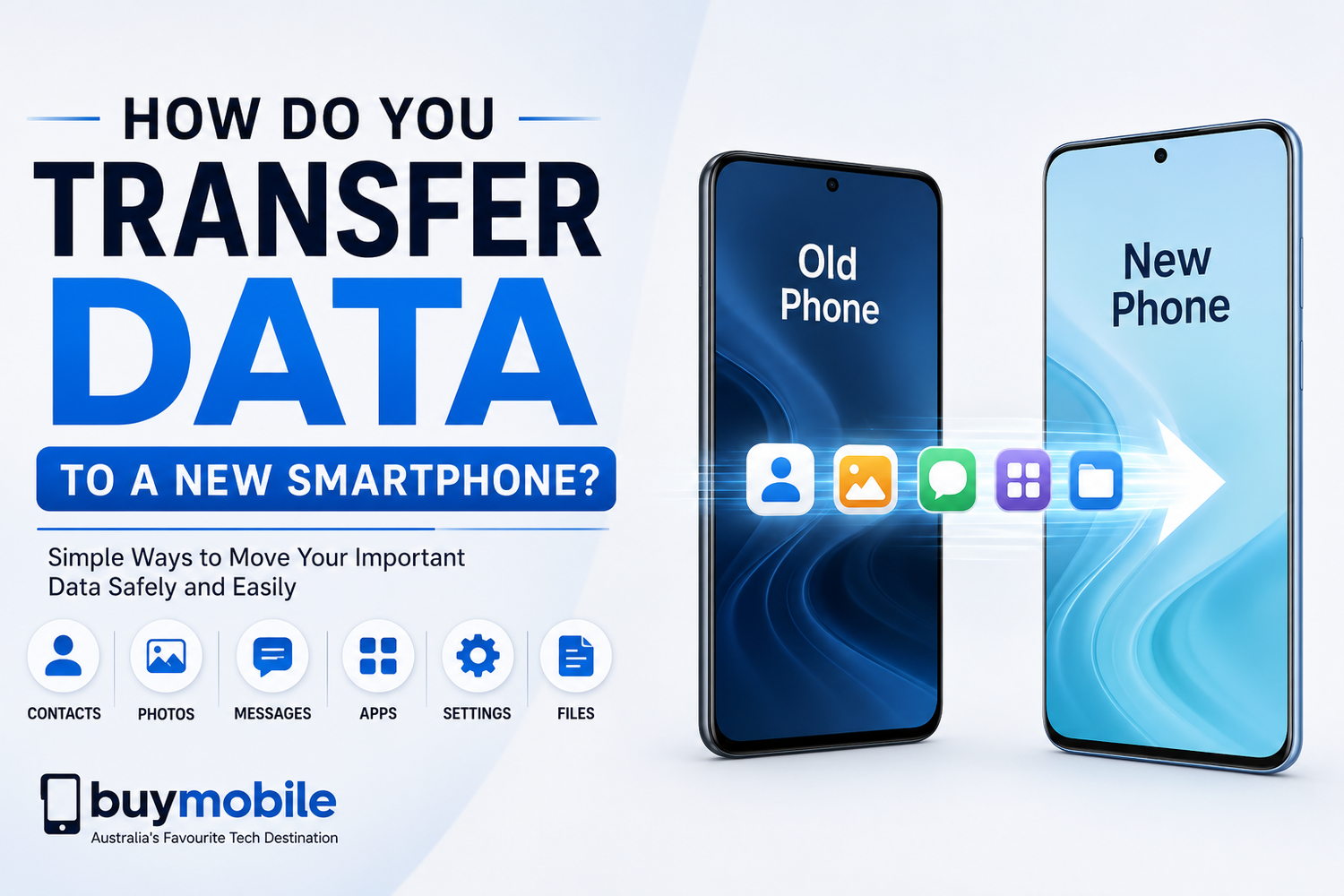
Buying a new smartphone is always exciting. Whether you've upgraded to the latest flagship device or chosen a budget-friendly model with improved features, setting it up is the first step before you can start enjoying it. One of the biggest concerns during this process is transferring your data safely and completely.Fortunately, moving your information from an old phone to a new one has become much easier. Modern smartphones offer built-in tools that can transfer contacts, photos, videos, apps, messages, and settings with minimal effort.If you're wondering how to transfer data to a new smartphone, this guide explains the process step by step and highlights the best methods to make your transition smooth and stress-free.
Before You Start
Before transferring any data, there are a few important things to do.First, fully charge both smartphones to avoid interruptions during the transfer. Connect both devices to a stable Wi-Fi network if you're using cloud-based migration. Make sure your old phone has enough storage available for backups and that your new device has sufficient free space to receive your files.It's also a good idea to update both phones to the latest software version before starting.A little preparation helps prevent unexpected issues later.
Back Up Your Existing Smartphone
Creating a backup is the safest way to protect your data.Android users can back up their phones through their Google account, while iPhone users can use iCloud or a computer backup.A complete backup usually includes:
1.Contacts
2.Messages
3.Photos
4.Videos
5.Calendar events
6.App data
7.Device settings
8.Wi-Fi passwords
Having a backup ensures your information remains safe even if something goes wrong during the transfer.
Use the Built-In Transfer Tool
Most modern smartphones include a built-in setup assistant that guides users through the migration process.When turning on your new phone for the first time, you'll usually be asked whether you want to copy data from another device.Simply follow the on-screen instructions, connect both phones, and choose what you'd like to transfer.This is often the fastest and easiest method for most users.
Transfer Data Using a Cable
A wired connection usually provides the quickest transfer speed.Many smartphones support direct phone-to-phone transfers using a USB cable or USB-C adapter.With a cable connection, you can usually transfer:
1.Photos
2.Videos
3.Contacts
4.Apps
5.Messages
6.Music
7.Documents
8.Settings
Since data moves directly between the devices, transfers are often faster than wireless methods.If you're moving a large photo library or many videos, a cable connection is highly recommended.
Wireless Phone-to-Phone Transfer
If you don't have a cable, wireless transfer works extremely well.Many Android manufacturers offer their own migration tools, while Apple devices support Quick Start for moving information between iPhones.Wireless transfers typically move:
1.Contacts
2.Photos
4.Videos
5.Applications
6.Messages
7.Device settings
8.Call history
Although large transfers may take longer than wired connections, the process is simple and requires very little technical knowledge.
Restore from Cloud Backup
Cloud backups make upgrading especially convenient.Simply sign in using the same Google or Apple account you used on your previous phone.After signing in, you'll usually be asked whether you'd like to restore your previous backup.Once confirmed, your new phone begins downloading your information automatically.This method is particularly useful if your old phone is no longer available.
Moving Photos and Videos
Photos and videos are often the largest part of any smartphone transfer.Cloud services such as Google Photos or iCloud Photos automatically synchronize your media across devices.If cloud storage isn't available, you can transfer files manually using a computer or direct cable connection.Once synchronization finishes, your photo library should appear exactly as it did on your old device.
What About Apps?
Most applications can be reinstalled automatically during setup.If you're restoring from a backup, your new smartphone usually downloads compatible apps directly from the app store.Some applications may require you to log in again for security reasons.Banking apps, payment apps, and authentication software often require additional verification before they can be used on the new device.This extra security helps protect your personal information.
Transfer Contacts and Messages
Contacts are usually synchronized through your Google or Apple account.Once you sign into your account, your contacts automatically appear on the new device.Messages can also transfer automatically if you use the built-in migration tool or restore from backup.Messaging apps like WhatsApp, Telegram, and Signal each provide their own transfer process, so it's important to follow their official instructions to preserve your chat history.
Don't Forget Your Files
Many users store important documents on their phones.These may include PDFs, presentations, spreadsheets, downloaded files, and work documents.Cloud storage services make accessing these files much easier across multiple devices.If files are stored locally, simply copy them using a cable, computer, or cloud service before resetting your old phone.Checking your Downloads folder is a good habit before completing the transfer.
Check That Everything Has Transferred
Before erasing your old smartphone, spend some time checking your new device.Make sure the following items are available:
1.Contacts
2.Photos
3.Videos
4.Messages
5.Applications
6.Calendar events
7.Notes
8.Music
9.Documents
Open several important apps to confirm they work correctly.It's much easier to recover missing information while your old phone is still available.
Secure Your New Smartphone
Once the transfer is complete, spend a few minutes improving your phone's security.
Enable:
1.Fingerprint recognition
2.Face unlock
3.Strong screen lock
4.Device encryption
5.Find My Device features
6.Automatic backups
These features help protect your information if your smartphone is ever lost or stolen.
Reset Your Old Smartphone
Only erase your old phone after confirming everything has transferred successfully.A factory reset removes your personal information before selling, recycling, or giving away the device.Remember to remove your Google or Apple account first if required.Also remove any memory cards or SIM cards before handing the device to someone else.This final step protects your privacy.
Common Problems During Data Transfer
Occasionally, transfers may encounter small issues.Common problems include:
1.Slow Wi-Fi connections
2.Low battery levels
3.Insufficient storage space
4.Interrupted transfers
5.Outdated software
If this happens, simply restart both devices, reconnect to Wi-Fi, and resume the process.Most transfer tools automatically continue where they left off.