






































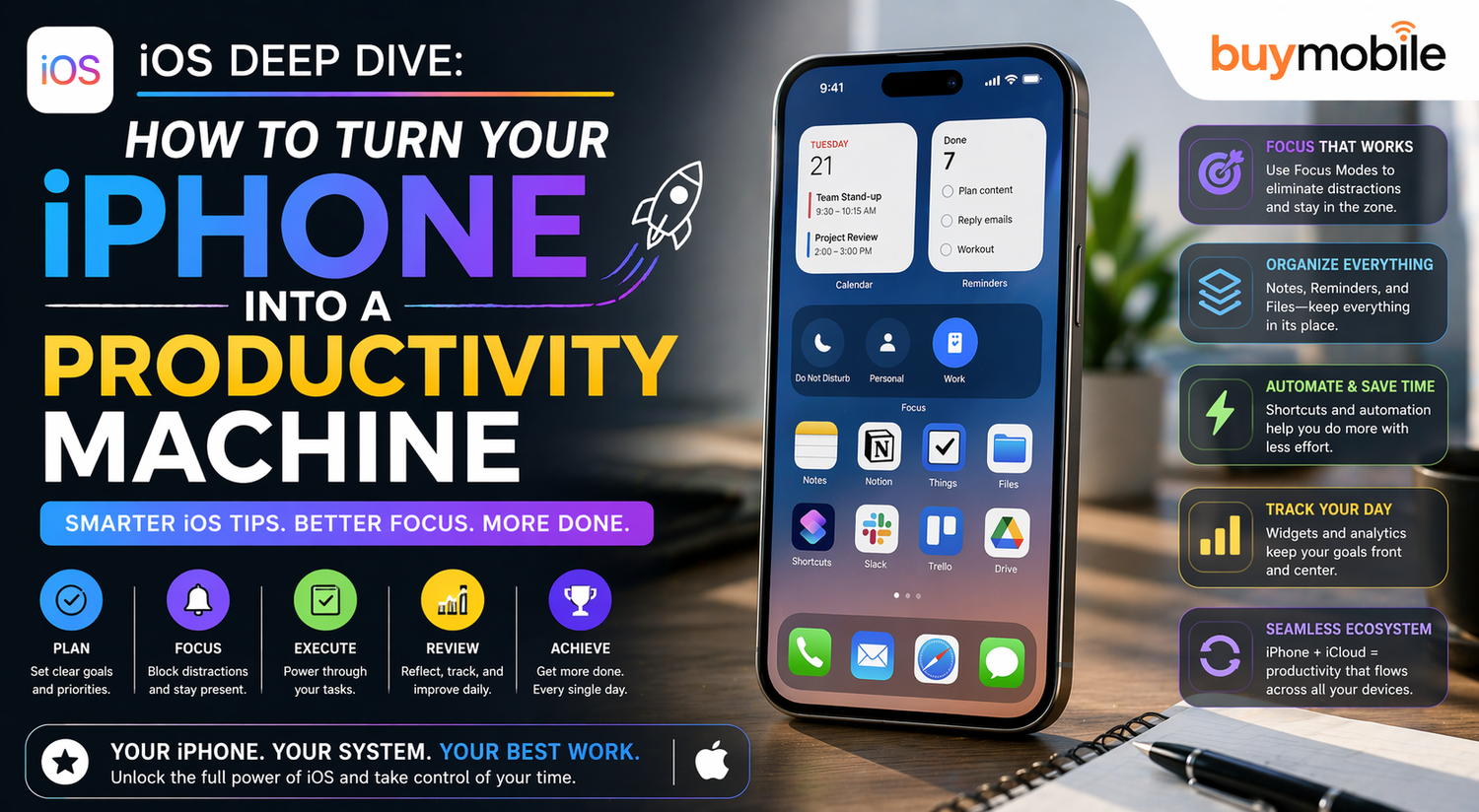
In 2026, your iPhone is no longer just a device for calls, messages, or scrolling through social media. It has quietly evolved into a powerful productivity tool that can replace notebooks, planners, and even parts of your laptop workflow.
The problem is not capability. It is awareness.
Most users only scratch the surface of what iOS can actually do. Hidden beneath the clean interface are features that can save time, reduce distractions, and help you get more done every day.
If you have ever felt like you could be using your iPhone more efficiently, this deep dive will show you how to unlock its full potential.
What Makes iOS Powerful for Productivity in 2026
iOS is designed to be simple on the surface but powerful underneath.
Apple focuses on seamless integration, meaning your apps, settings, and features work together without friction. This makes everyday tasks faster and more intuitive.
From automation to multitasking, iOS allows you to customize your workflow in a way that suits your routine. Once you start using these features, your iPhone stops being just a phone and becomes a productivity hub.
How Can You Reduce Distractions on Your iPhone?
Distractions are one of the biggest barriers to productivity, and iOS offers tools to manage them effectively.
Focus modes allow you to control which notifications reach you at specific times. You can create separate profiles for work, personal time, or sleep, ensuring that only important alerts come through.
This means you can stay focused during important tasks without completely disconnecting.
Customizing notifications also helps. Turning off alerts from non-essential apps reduces interruptions and keeps your attention where it matters.
Can Your iPhone Automate Daily Tasks
Yes, and this is one of the most powerful features of iOS.
The Shortcuts app allows you to automate repetitive tasks. You can create actions that run with a single tap or even automatically based on time or location.
For example, your phone can switch to silent mode when you arrive at work, send a message when you leave a location, or open specific apps at certain times.
Automation saves time and reduces the need for manual actions, making your daily routine smoother.
How Do Widgets Improve Productivity
Widgets are more than just visual elements. They provide quick access to information without opening apps.
You can place widgets for calendars, reminders, weather, and notes directly on your home screen. This allows you to check important details at a glance.
Stacked widgets take this a step further by letting you swipe through multiple widgets in one space. This keeps your home screen organized while still giving you access to key information.
With the right setup, your home screen becomes a productivity dashboard.
Can Multitasking on an iPhone Actually Replace a Laptop
For many tasks, yes.
Features like split-screen apps, quick app switching, and background processes make multitasking more efficient. You can respond to messages while browsing, take notes during video calls, or manage multiple tasks without closing apps.
The Files app also helps manage documents, making it easier to work on files directly from your phone.
While it may not fully replace a laptop for complex tasks, it can handle a surprising amount of daily work.
How Can You Manage Tasks and Stay Organized
iOS offers built-in tools that make task management simple and effective.
The Reminders app allows you to create lists, set deadlines, and receive notifications for important tasks. It integrates with Siri, making it easy to add tasks using voice commands.
The Notes app is another powerful tool. It supports checklists, document scanning, and even basic formatting for organizing information.
Using these apps together helps you stay organized without needing third-party tools.
Are There Hidden Features That Save Time
Yes, and many users are not aware of them.
Back Tap is one such feature. By tapping the back of your iPhone, you can trigger actions like taking a screenshot or opening an app.
The keyboard also has a hidden trackpad mode. By holding the spacebar, you can move the cursor more precisely when editing text.
These small features may seem minor, but they add up to significant time savings.
How Can You Improve Battery Life While Staying Productive
Productivity features can sometimes affect battery life, but iOS provides ways to manage this.
Low Power Mode helps extend battery life when needed. You can also monitor which apps consume the most power and adjust their usage.
Managing background activity and turning off unnecessary features ensures that your phone remains efficient throughout the day.
This balance allows you to stay productive without worrying about running out of battery.
Can iOS Help You Work Smarter, Not Harder
Absolutely.
The combination of automation, smart notifications, and seamless integration allows you to focus on what matters most. Instead of spending time managing your phone, your phone works for you.
Features like Siri suggestions and app recommendations help speed up common tasks, making your workflow more efficient.
This is where iOS truly stands out.


